
Start with what you actually need
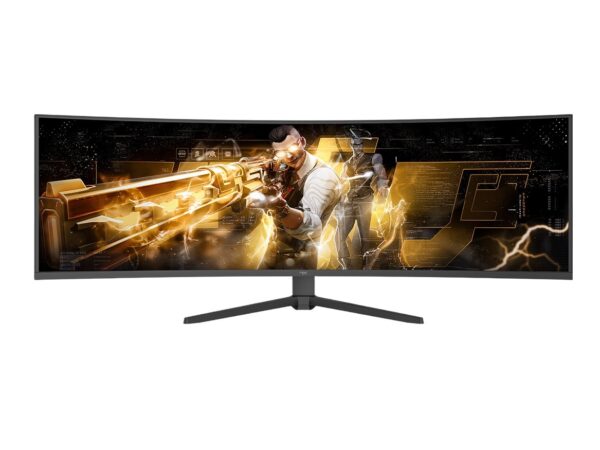
You want simple. You want apps working. You want updates that do not break things. Ask what you will use the TV for first: streaming, gaming, casting, or local media. Think about the screen and the brand of screen, because OS and panel behave together sometimes — check the panel vendor page or the monitor manufacturer you consider to see listed driver and feature notes. Major features often debut at CES in Las Vegas, so seeing those demos helps judge real implementation; for a quick view of makers and specs, check the collection from top monitor manufacturers.
Compatibility and apps you actually open
Ask which apps come preinstalled and which you can add later. Confirm your must-have streaming services are native apps, not just browser pages. Some OS allow sideloading or developer mode; others lock the store. If you use multiple accounts, test how the OS handles switching. Also check remote voice assistant support and whether HDMI-CEC behaves with your soundbar or receiver.
Performance, updates, and security
Get clear answers about update policy. Ask how often the vendor issues security patches and major OS updates. Slow updates mean old bugs and broken apps. Ask about background memory use and app suspension: if the OS kills your music app when you switch input, that’s a problem. Look for statements about patch cadence and a basic timeline for feature support.
Inputs, codecs, and real-world playback
Check supported codecs and HDR formats. Ask if Dolby Vision, HDR10+, or HDR10 are supported and under what conditions (some modes disable certain codecs). Confirm HDMI version and whether eARC works with your AVR. Test sample files when you can. If you plan to use a game console, ask about input lag mode and whether the OS forces overlays that increase latency.
User interface and accessibility
Ask how customizable the home screen is. Look for clarity on account separation, parental controls, and text scaling. If you need language options or simple menus for elders, verify localization and shortcut creation. Also check whether the remote supports shortcut keys you need or whether an app remote exists for phone control.
Common mistakes people make
People often pick an OS because of one flashy feature without checking long-term support. They assume chipset number equals smooth UI. They skip checking the app store region differences. They forget to confirm update policy and warranty on software issues. Ask these questions now to avoid regret later.
Alternatives to weigh briefly
Compare the major options by use case rather than by headline name. Some platforms give broader app selection. Others limit apps but offer cleaner navigation. If you want frequent third-party app installs, prioritize openness and debug tools. If you want a very simple living-room remote, choose the OS with fewer prompts and larger fonts. Balance the trade-offs against your primary uses.
Final synthesis
Decide by answering a few direct questions: what apps must work, how long do you want updates, and how much control do you want over the system. When those answers match the vendor’s statements and demo behavior, the risk drops. For clear product and spec lists that help match your needs to real hardware, look through the curated monitor and panel options at npc.